
Make a shortcut for an app Smile does not know
Smile does not make Shortcuts. Apple's Shortcuts app does, and it can open any app on your phone. Five steps to build one and hand Smile its name.
- You will end up with
- Any app on your phone, launchable
- Takes about
- 4 minutes
If an app is not in Smile's built-in list, this is the way in. A Shortcut can open anything installed on your phone, so there is no app this will not reach.
Do the seamless launching setup first if you have not. Without it, every shortcut you make here will flash the Shortcuts app on its way to the real one.
Open the Shortcuts app
It is built into every iPhone, and the icon is made of coloured squares. If you deleted it at some point, it is free to reinstall from the App Store.
Create a new shortcut
Tap the plus button in the top right corner.
Add an Open App action
Tap Add Action, search for Open App, and choose it. Then tap the greyed-out App in the action and pick the app you want.
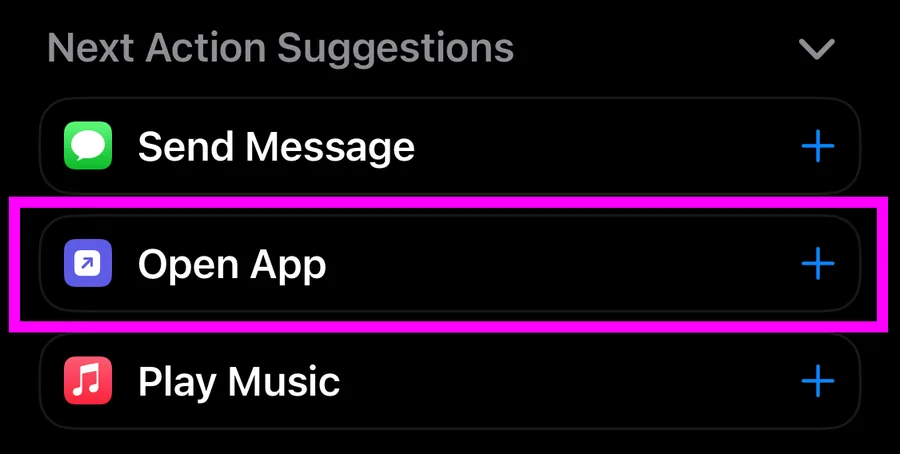
Open App is the common case, but a shortcut can do anything Shortcuts supports. People point Smile at shortcuts that start a playlist, open a specific note, or turn on a focus mode and then open an app.
Give it a clear, unique name
Tap the name at the top and type something you will remember. This name is the only thing connecting the shortcut to Smile, so make it distinct. Two shortcuts with similar names are the most common cause of the wrong one running.
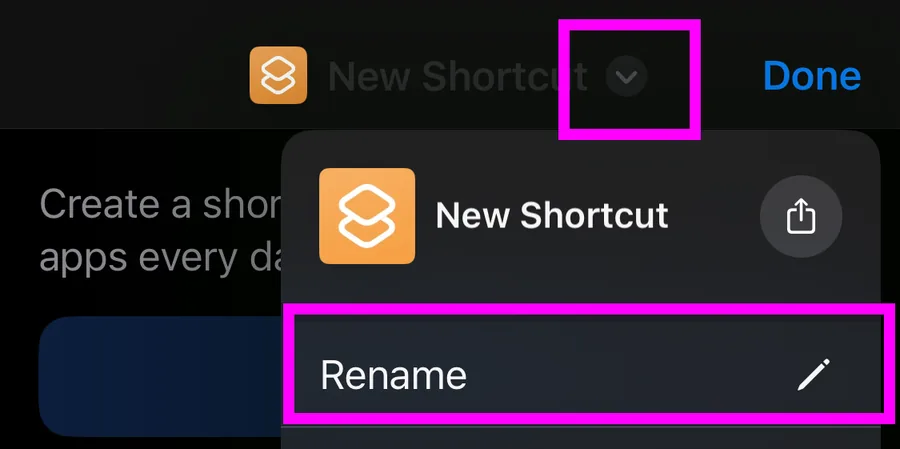
Add it to Smile by name
Back in Smile, add an app, choose Advanced, and type that name into the shortcut name field.
It has to match exactly. Capital letters, spaces, punctuation and emoji all count. Open Notes and open notes are two different shortcuts as far as Smile is concerned.
The display name is separate, so the thing on your home screen can say whatever you like.
When nothing happens
A shortcut that does not run is almost always a name mismatch. Open the Shortcuts app, look at the name on the shortcut itself rather than what you remember calling it, and retype it in Smile character for character. Watch for a trailing space, which is invisible and breaks the match.
If the name is right and it still does nothing, the automation is the next thing to check.
Doing this for a lot of apps
Each app needs its own shortcut, but the automation setup is shared, so the second one takes about thirty seconds. Once you have made a few, duplicating an existing shortcut in the Shortcuts app and changing the app and the name is quicker than starting fresh.
Stuck on a step?
Someone in the Discord has almost certainly hit the same thing. It is the fastest way to get unstuck.