
Set up seamless launching
Without this, every Advanced shortcut bounces through the Shortcuts app on its way to the real one. One automation, set up once, makes them open directly. It works differently on iOS 27.
- You will end up with
- Apps that open without a detour
- Takes about
- 6 minutes
This is the fiddliest thing in Smile, and it is worth doing. Set up once, it applies to every Advanced shortcut you will ever add.
Why this exists
Apple does not allow an app to run a Shortcut silently. Left alone, tapping an Advanced entry opens the Shortcuts app, which then opens what you actually wanted, and you watch the detour every time.
The way around it is an automation that runs the moment Smile opens. Smile hands the automation the shortcut to run, and the whole thing happens behind a black screen. You tap a word and the app appears.
Which set of steps do you need?
Check Settings, General, About for your iOS version.
On iOS 27 or later, the automation is built into the shortcut and there is almost nothing to do. Use the short version below.
On iOS 26 or earlier, you build the automation by hand. That is the long version, and it is the one most people need.
iOS 27 or later
Add the helper shortcut
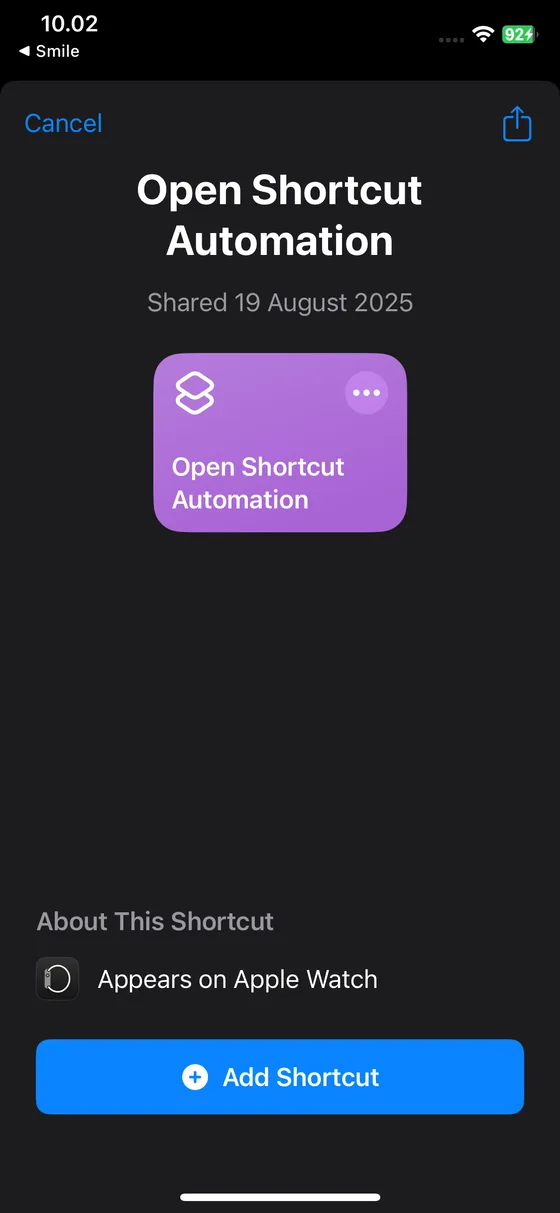
Open the link below and tap Add Shortcut.
Get the helper shortcut for iOS 27
Sometimes iOS needs a couple of taps before it actually opens the shortcut. If nothing happens the first time, tap again.
Check that it is set to run immediately
Open the Shortcuts app, go to the Automation tab, and press and hold the automation called When Smile is opened. Make sure it says Run Immediately and not Don't Run.
That is the whole setup. On iOS 27 the automation ships inside the shortcut, so there is nothing else to build.
iOS 26 or earlier
Eight steps. None of them are hard, but the order matters and it is easy to tap past one. The screenshots are from the app itself.
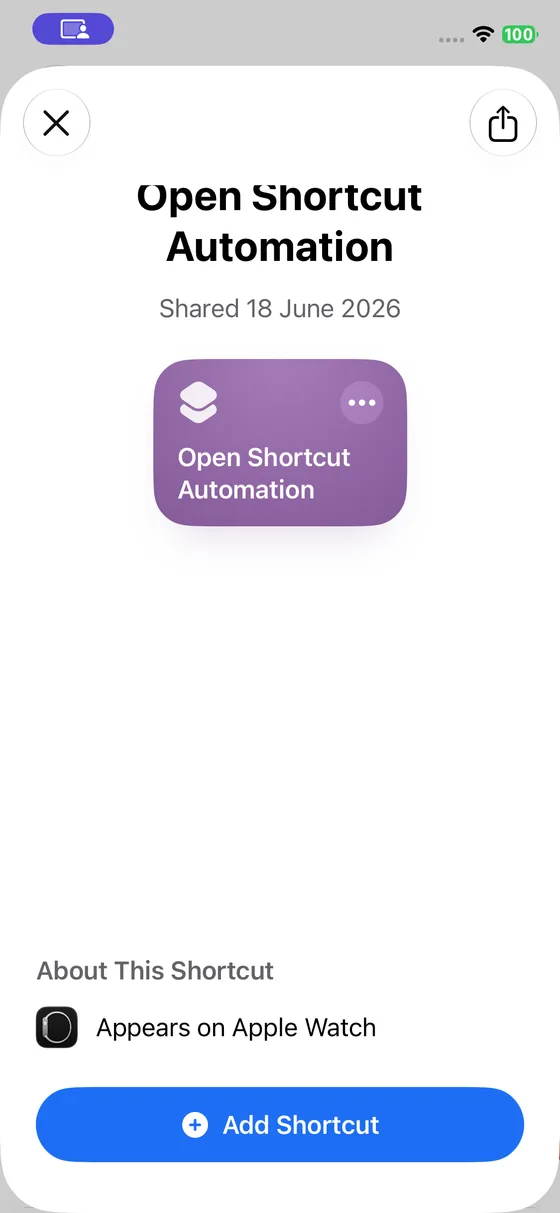
Add the helper shortcut
Open the link and tap Add Shortcut. It is called Open Shortcut Automation, and you will need that name in step 7.
Open the Shortcuts app and go to Automation
Shortcuts is built into every iPhone. Open it and tap the Automation tab along the bottom.

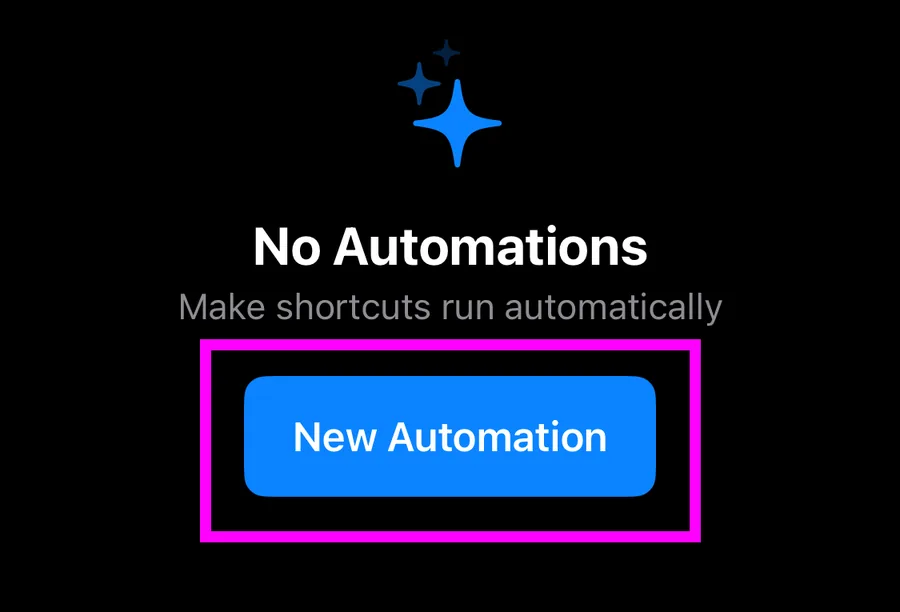
Create a new automation
Tap the plus button to start a new one.
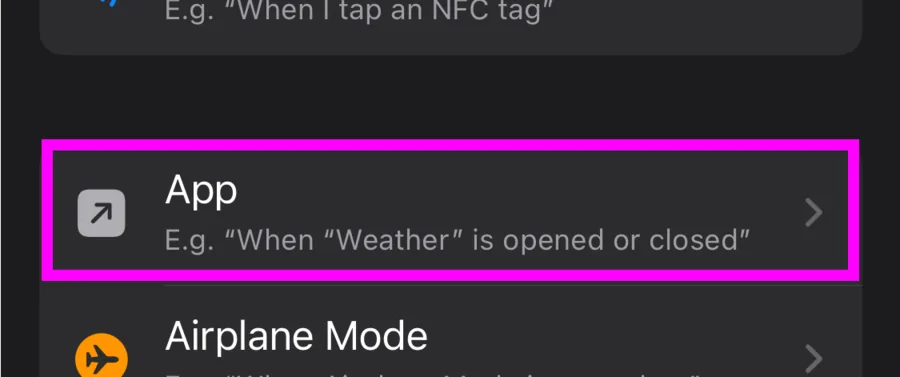
Choose App as the trigger
From the long list of triggers, pick App. You want the automation to fire when an app opens.
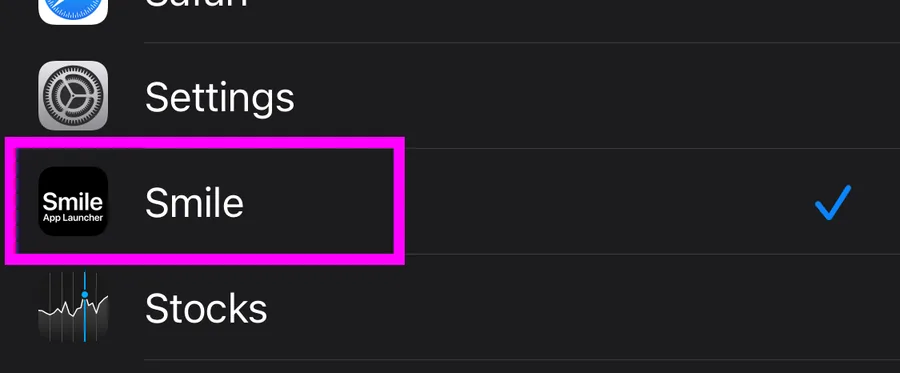
Select Smile
Tap to choose an app, search for Smile, and select it. Make sure Is Opened is ticked, which it is by default.
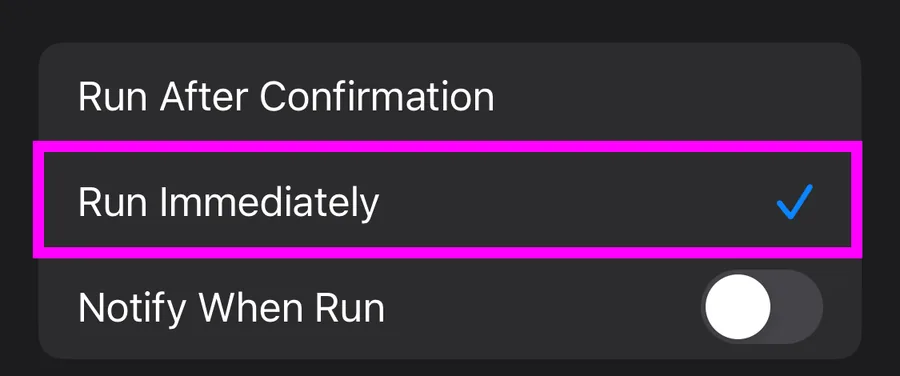
Set it to Run Immediately
This is the step people miss. Choose Run Immediately, not Run After Confirmation. If you leave it on confirmation, iOS shows a notification every single time and nothing is seamless.
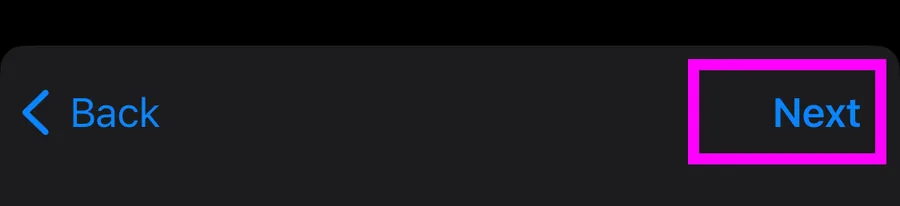
Then tap Next in the top right corner.
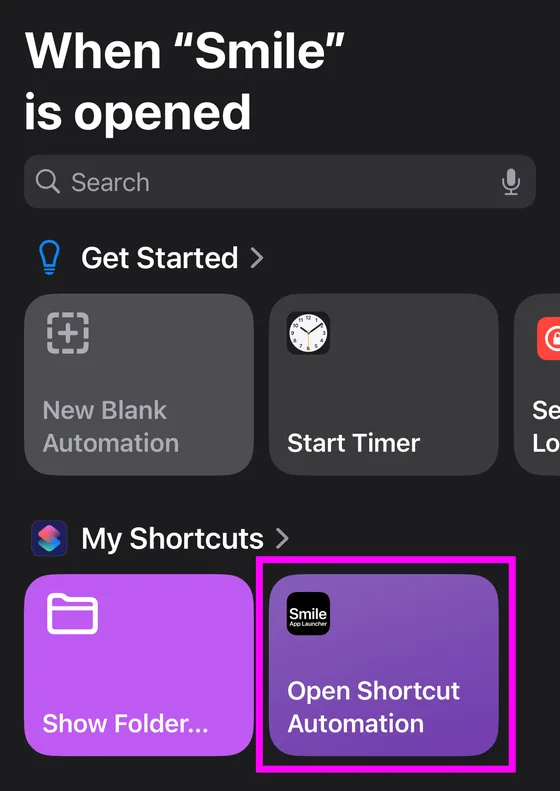
Choose the helper shortcut
Now pick what the automation runs. Find Open Shortcut Automation, the one you added in step 1, and select it.
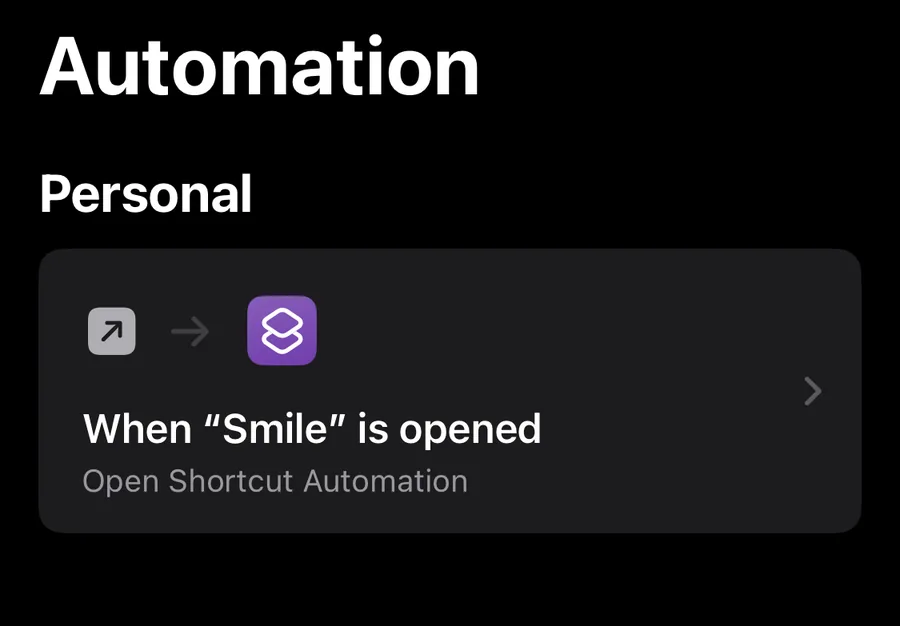
Check it against this
Your finished automation should look like the one below: when Smile is opened, run Open Shortcut Automation, immediately.
Go back into Smile and mark the setup as complete. Advanced shortcuts will now open without the detour.
If it still bounces through Shortcuts
Nearly always, the automation is set to ask for confirmation rather than run immediately. Open the automation and check that one setting first.
After that, check the automation is actually enabled, and that it is pointed at Open Shortcut Automation rather than at one of your own shortcuts.
Smile also has a safety net. In settings, Smooth Mode Fallback lets you say how long to wait before giving up and launching the old way instead. Three seconds is the default. It means a failed automation still opens your app, just less gracefully.
If Smile asks you to replace the shortcut
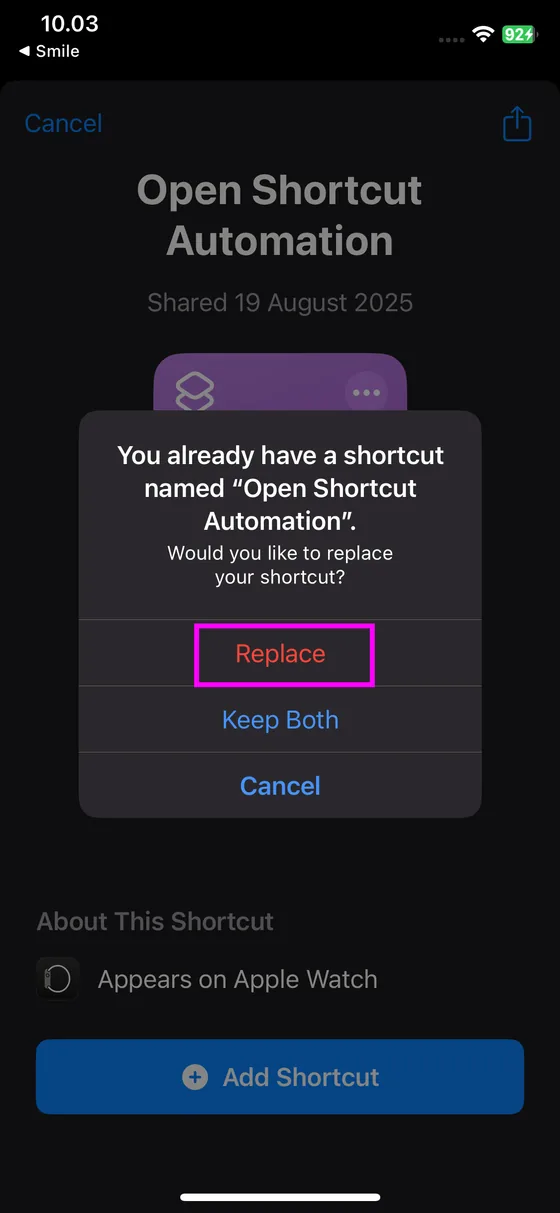
The helper shortcut gets improved occasionally, and Smile will prompt you. Tap through to the new one, choose Add Shortcut, and when iOS says you already have a shortcut with that name, choose Replace. The automation keeps pointing at it, so there is nothing else to redo.
What this does not change
Simple entries never needed any of this. They open through a URL scheme and have always been instant. This whole page is only about Advanced.
Stuck on a step?
Someone in the Discord has almost certainly hit the same thing. It is the fastest way to get unstuck.