
Add your apps
Smile knows 136 apps by name and can reach every other app through Apple's Shortcuts. This is how to tell which route an app needs, and what to do when it needs the harder one.
- You will end up with
- Your apps listed in the widget
- Takes about
- 5 minutes
iOS does not let one app open another whenever it feels like it. There are only two routes, and Smile gives you both. Most people use Simple for the ten apps they open constantly and never touch Advanced at all.
Open the widget you want to fill
Open Smile. The first screen lists all ten widgets, showing how many shortcuts each one holds. Tap the one matching the widget you put on your home screen.
Add an app
Tap to add, and you get the choice that matters: Simple or Advanced. Everything else on this screen is optional.
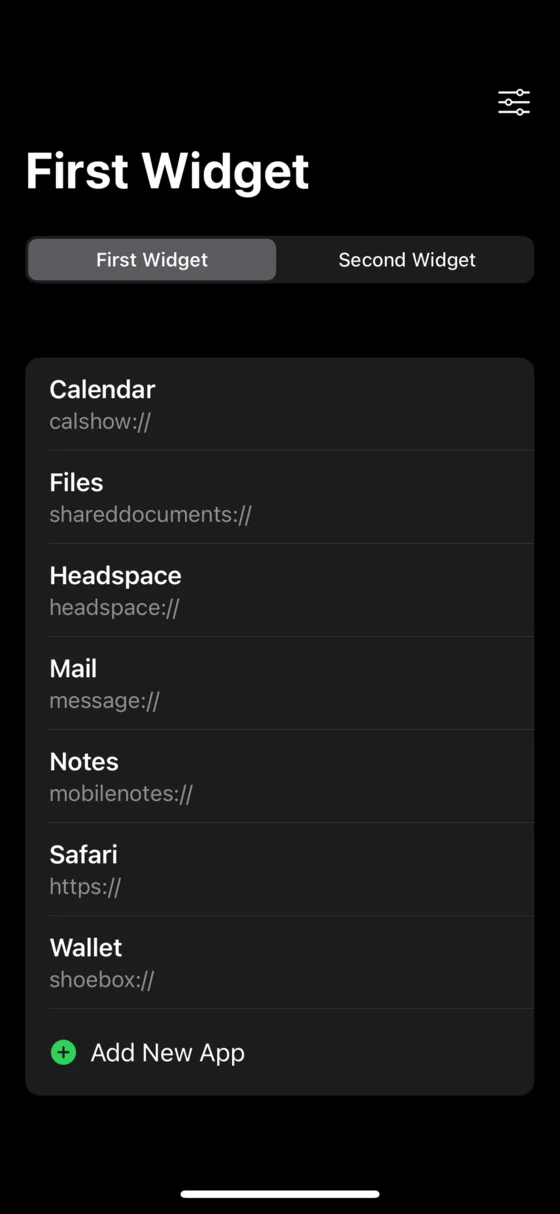
Try Simple first
Simple opens an app through its URL scheme, which is a short address the app publishes for exactly this purpose. Smile ships with 136 of them already filled in, covering most of Apple's own apps and a lot of the common ones.
Search the list, pick your app, and you are done. There is nothing to set up and nothing that can go out of date.
If you happen to know an app's URL scheme yourself, there is a field to paste it in, and a Test Path button that tells you whether it resolves before you save.
Use Advanced for anything else
Plenty of apps never publish a URL scheme, so no list can include them. Advanced gets around this by running a Shortcut in Apple's Shortcuts app, and a Shortcut can open literally any app on your phone.
You make the Shortcut yourself, once, then tell Smile its name. It takes about a minute per app.
Make a shortcut for an app Smile does not know
Advanced was called Smooth mode until recently. If you see that name in an older screenshot or a forum post, it is the same thing.
Name it whatever you like
The name you type is what appears on your home screen, and it does not have to be the app's real name. Call it whatever makes sense to you.
One exception. In Advanced mode there is a separate field for the shortcut name, and that one has to match the name in the Shortcuts app exactly, including capital letters, spaces and any emoji. Smile finds the shortcut by that string and nothing else.
Check the home screen
Go back out to the home screen. The widget updates within a few seconds. If it still looks empty, wait a moment longer, because iOS decides when widgets redraw and it is not always instant.
Moving apps around
Drag an app up or down to reorder it, or drag it onto another widget entirely. Press and hold an entry for a menu with Move to and Copy to, which is easier than dragging when the list is long.
One rule: a shortcut can only move to another launcher widget or an empty one. It cannot move into a widget that is currently a clock or a weather widget, because those do not hold app lists.
If an app opens the wrong thing
URL schemes are not policed by Apple, so occasionally two apps claim the same one and iOS picks whichever it likes. If a Simple entry opens something unexpected, switch that app to Advanced and use a Shortcut instead. A Shortcut names the app directly, so there is nothing to collide with.
Stuck on a step?
Someone in the Discord has almost certainly hit the same thing. It is the fastest way to get unstuck.